2022 Sponsors & Exhibitors Manual

The exhibitor manual will be updated with information as planning proceeds. If you have any queries, or are unable to find the information you are looking for, contact mail@conferencedesign.com.au.
Exhibition Times

The following times are subject to change as planning proceeds.

The exhibition area will be located in The Gallery on Level 2 of the Convention Centre at the International Convention Centre (enter off Iron Wharf Place).

Exhibitor Bump In

Sunday 13th November 2022

16:30 –  19:00

We recommend bringing a high vis vest in case there is a delay to the build.

When arriving for bump in please go straight to your stand and begin setting up. Conference staff will deliver your name badges directly to your stand, together with an exhibitor pack.

Exhibitor packing materials must be removed from the exhibition area no later than 19:00.

Exhibitor Bump Out

Wednesday 16th November 2022

15:30 – 16:30

Please ensure pack up is completed by 16:30 for Moreton Hire to begin dismantling the booths. 

If you are in the exhibition area after 16:30, you will be required to wear a high vis vest.

Open to delegates

The exhibition will be open at the following times:

  • Monday 14th November: 08:30 – 18:00
  • Tuesday 15th November: 08:30 – 17:00
  • Wednesday 16th November: 09:00 – 15:00

If you are conducting an on-stand prize draw, please ensure winners are drawn and announced prior to the end of lunch on Wednesday 16th November.

Deliveries

Late and missing deliveries are the main problem for sponsors and exhibitors when arriving onsite for a conference.

  1. Download and use the delivery label provided by the venue.
  2. Confirm with your courier the delivery has been made BEFORE you arrive.
  3. Have the name of your courier, the consignment numbers and confirmed delivery date when you arrive.
  4. Goods will only be accepted between the hours of 07:00 and 16:00, 2 working days prior to the event.

All exhibitors having deliveries made to the loading dock must complete the online loading dock delivery form: https://www.iccsydney.com.au/organisers/organiser-toolkit/deliveries/loading-dock-booking

The ICC encourages the use of a Freight Forwarder for deliveries to the centre. A list of major freight providers below:

Collections

  1. Download and use the collection label provided by the venue.
  2. Box up any materials requiring collection and leave on your stand for collection by venue staff during bump out.
  3. Arrange for collection of the items with your courier as per the pick up details noted in the collection label.
  4. Check with your courier whether a consignment note/number is required. If so include these details on your boxes before they are collected by the venue staff.
  5. All goods must be collected from the ICC prior to COB Thursday 17th November.

All exhibitors having materials collected from the loading dock must complete the online loading dock delivery form: https://www.iccsydney.com.au/organisers/organiser-toolkit/deliveries/loading-dock-booking

Forklift Services

Exhibitors or their stand-builders requiring a forklift during move in or move out, must pre-book these services in advance with the ICC Sydney.  Charges apply. To obtain a quote, complete the following form and return it to eventlogistics@iccsydney.com

https://www.iccsydney.com.au/getmedia/a899c27e-3dab-483b-9f2f-1e08d60a11d8/icc-sydney_event-logistics-quote_2021_v1d.pdf

Important Contacts & Information

Exhibition Supply Company

Moreton Hire is the appointed exhibition supply company. Moreton Hire supply exhibition booths, furniture hire, trestle tables, fascia/name board, lighting & power, signage, audio visual, plants, custom stands, and timing schedules.

For build, stand and furniture enquiries, please contact:

MANDY SCOTT
mandy.scott@moreton.net.au
07 3307 4452

To complete your furniture order and view the Moreton Hire catalogue/manual please click the button below. 

Conference Design

Please contact organisers at Conference Design if you have any queries.

Conference Team
e: sam@conferencedesign.com.au
e: andrew@conferencedesign.com.au
p. +61 3 6231 2999

Custom Stands

All custom stand plans must be sent to Exhibitor Services at the ICC (exhibitionservices@iccsydney.com) for approval and include a completed permit form for approval by the safety department.

Custom Stand bump in is scheduled for 0800-1530 on Sunday 13th November. 

Venue Contact

Minnie Yao-Konya
International Convention Centre (ICC)

e: myao@iccsydney.com

p: 02 9215 7132

If you would like to order any catering, cleaning, or other services via the ICC, please use the link below to access all exhibitor order forms. All completed forms must be emailed to exhibtionservices@iccsydney.com

ICC EXHIBITOR ORDER FORMS

Your Contact Person

When booking please appoint a single point of contact within your Organisation.

All bookings will be recorded under the one name and all correspondence will be sent to this person.

Parking

ICC Sydney operates two 24 hour car parking stations with a total of 826 parking spaces including 11 disabled parking bays, 25 motorcycle parking spaces, 50 bicycle racks and 30 electric car charge spaces. The two car park facilities are located within the Exhibition Centre (Car Park 1) and Aware Super Theatre (Car Park 2).

Standard parking rates (will apply for all vehicles entering the car parks):

0 – 1 hour $18.00
1 – 2 hours $30.00
2 – 3 hours $38.00
3 – 4 hours $44.00
4+ hours (to 4am only) $49.00
Night rate
Entry after 5pm and exit before 4.00am
Car Park rates reset at 4.00am daily.
$28.00

Representatives

An official name badge is required to access the conference and exhibition areas.

Anyone from your Organisation attending the conference, or guests you wish to invite, must register with Conference Design prior to the event.

 All company representative registrations and social functions, inclusive and/or additional, need to be booked. 

Please check your sponsorship or exhibition inclusions to confirm the number of inclusive registrations available.

Onsite Storage

There will be limited on-site storage facilities for packing materials, boxes and giveaways.

Exhibitors cannot leave boxes and packing material in the exhibition display area during the show.

Additional Exhibitor Passes

Additional exhibitor passes can be purchased via the online registration portal:

  • Full registration, including a ticket to the pre-conference drinks and the welcome reception: $550 per person
  • 1 day pass: $300 per person

Dinner tickets can be purchased separately.

App Game

All sponsors and exhibitors will be issued QR codes as part of the App Game. Exhibitors can choose to clearly display the QR code on or within your booth to avoid unnecessary interruptions or you can ‘hide’ the code to ensure interaction with your representatives.

To enter the draw, participants will need to have collected all sponsor and exhibitor names.

Key sponsors will also be given the first opportunity to provide prizes. If you would like to donate a prize please contact sam@conferencedesign.com.au

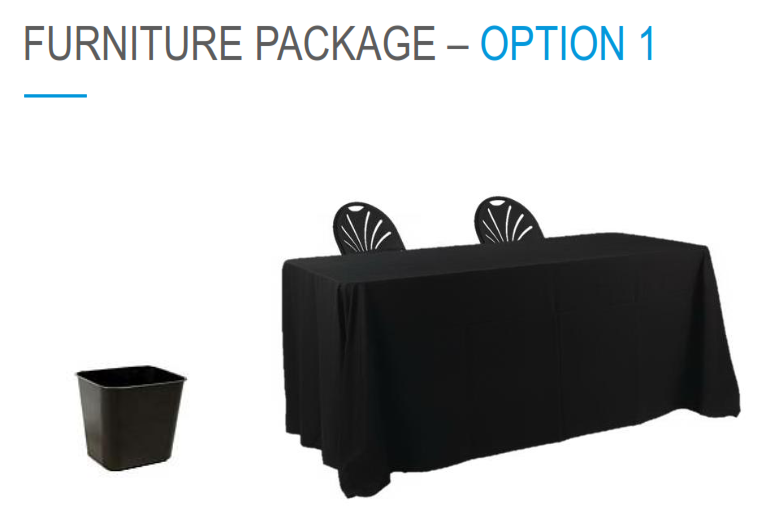
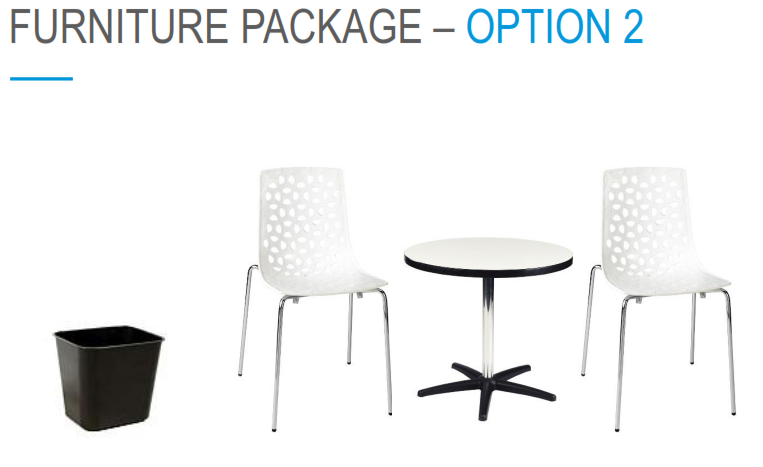
Furniture Package Options

Each Exhibition Site includes:

  • 3m x 2m Floor Space/Shell Scheme.
  • White panel shell scheme booth.
  • Fascia board with your company name.
  • Your choice of furniture package
  • 2 x spotlights.
  • 1 x 4 amp power outlet.
  • 1 x wireless internet connection per site.
  • 1 x waste paper basket.

Advertising & Marketing Materials

Please upload advertising and marketing materials via the exhibitor portal, before the due date listed with each item.

If you have any questions regarding your package or inclusions please do not hesitate to contact Conference Design (sam@conferencedesign.com.au).

Please check the inclusions of your sponsorship package to confirm which advertising formats you need to supply.

Due 12th September

Where included in your package, logo’s will be used on the website, the online conference platform, in the printed program, in the conference app, on sponsors’ slide and in marketing materials.

Your logo should be:

Print: EPS version

Web and App: a high-resolution PNG, JPG or TIFF image, no less than 250 KB in size.

Upload via the exhibitor portal or email to Conference Design.

Due 12th September

  • Sponsors – 400 word profile
  • Exhibitors – 50 word profile

Include contact details, website link and any social media handles you wish to promote so delegates can connect with your organisation. Where included in your package, the profile will be displayed in the online conference portal, delegate app and on the website.

Upload via the exhibitor portal or email to Conference Design.

Due 12th September

Where included in your package, the website hyperlink supplied will be linked to your logo on the conference website and displayed with your exhibition listing in the online conference portal and conference app.

The hyperlink supplied is up to you. It can be a link to your company’s website, a specific product page, or to a marketing campaign, it is entirely up to you!

Due 14th October

Where included in your package, PDF’s and videos will be accessible through the conference website, online conference portal, and conference app.

Materials may be a simple flyer or brochure for delegates to download, a link to an online advertisement, a complimentary or discounted registration to a webinar or workshop, a voucher to an online shop, a job opening, the list goes on.

We encourage you to be unique and creative with your content!

Material guidelines

PDF’s

  • Colour PDF
  • Maximum size of 150kb per file
  • No bleed and no crop marks
  • PDFs will be uploaded as ‘as received’

Video’s

Promotional videos will be linked on the conference website, online conference portal and conference app, we recommend uploading a Youtube and/or Vimeo link to the exhibitor booking portal, or, an MP4 file maximum size 20MB .

Due 7th November

Where included in your package, these short “alerts/adverts” will be sent via the online conference portal and the conference app.

The body text for a push notification message should be no more than 30 words and a heading no more than 10 words.

Push notifications should be emailed in a word document to sam@conferencedesign.com.au.

Lead Management

The 2022 ACIPC Conference App features a Lead Management function where you can create questions for your team to ask delegates when they visit your exhibition booth.

How it works

When a delegate visits your stand, representatives can scan the QR code on their name badge and they will be provided with the delegates’ contact details.

Once the QR code has been scanned, your representative can the collect the delegate’s information based on, or guided by, your pre-loaded questions. The delegate’s responses can then be sent back to a staff member in your office or saved for follow-up after the conference.

Representatives must obtain delegate consent before collecting details, so we recommend including a question such as: “Do you consent to receive follow-up communication from our company”.

Your automated message

An automatic email can be created prior to the conference and sent to all delegates whose information has been captured. You can attached a pdf brochure, or the email might just be a simple ‘Thank you for visiting’.

Lead Management Set Up & Accessing Leads

To set up your lead questions, automated email, and lead alert email, please log into the Exhibitor Portal.

Only the main contact (the person managing your booking) will be able to set up the lead questions and emails and access the leads. Note the questions you set up will be available for use by both onsite and online representatives.

To access your leads, follow the steps below:

  • Click on Lead Management
  • Current Leads
  • Click Export at the bottom of the page – this will provide you with an Excel Spreadsheet

Information can be exported and collated at any time during or after the event. Please contact Conference Design (mail@conferencedesign.com.au) if you have any questions regarding the set-up of lead management.

Online Exhibition Listing

Sponsors and exhibitors are encouraged to interact with online delegates via the OnAIR virtual conference platform.

The exhibitor listing will be available throughout the conference where sponsors and exhibitors can meet with and host live presentations for online delegates.

If you would prefer not to allocate staff to the online component of the conference, delegates can contact you by clicking a “Request Info from Exhibitor” button on your exhibitor listing. Once clicked, the delegates details will be sent to you for follow up.

Click the image to the right to view a guide on the online conference platform for sponsors.
What does an online exhibition listing include?

  • Exhibitor listing in the online conference portal, include:
    • Logo & hyperlink (same as conference app).
    • Company profile (same as conference app).
    • PDF brochure/flyer/s available for download from your listing and the online exhibitor resource gallery (same as conference app).
    • Promotional video/s displayed with your exhibitor listing (same as conference app).
  • “Request Info from Exhibitor Button” – when a delegate clicks this button, their details will be submitted to you for follow up.
  • Ability to host Live Presentations for online delegates.
  • Ability to provide up to ten Frequently Asked Questions (FAQs) in your online listing.
  • Ability to connect with delegates via the online conference portal “meeting hub”.
  • Ability to meet with delegates via your online exhibitor listing throughout the conference.

Accessing the OnAIR Portal

Login details will be emailed directly to registered representative/s. The email will include auto-login details so representatives can easily log into the OnAIR portal directly. Once in the portal, representatives can access your exhibitor dashboard by clicking on your listing.

Representatives not registered will not be able to access the OnAIR portal.

When your representatives ‘enter’ your listing, they will see a meeting queue list, a list of who is already in meetings, and any meeting requests from delegates.

Leading up to and throughout the conference, your representatives can text chat with each other and view pre-loaded company brochures.

What you need to participate

In order to participate in the online exhibition, staff members will need access to a device (laptop or desktop computer are recommended), internet, a webcam and a microphone.

For the best user experience, we recommend using the latest version of Google Chrome.

Exhibitor Live Presentations

How it works

Exhibitors can schedule stand presentations through the OnAIR portal during programmed conference breaks. When attendees visit the online exhibition area, they will see a tab displaying all scheduled exhibitor presentations.

Exhibitors can present in Webinar Mode, where the audience sees the presenter and all attendees are audio only.  Alternatively, you can choose to present in Interactive Mode, where all attendees’ and exhibitors’ cameras and audio are enabled.

Setting up Exhibitor Presentations

Exhibitors can visit the OnAIR portal in advance of the conference to set up their presentation details. Simply expand the Live Presentation Schedule Widget and complete the following information:

  • Topic – enter the title of the presentation here.
  • Description – enter the description of the presentation here.
  • Date – select the date of the presentation.
  • Start Time – select the starting time of the presentation here.
  • Duration – choose how long you want to schedule this presentation for.
  • Format – choose the format of the presentation:
    • Webinar – participants show audio only. The presenter shares their audio and video
    • Interactive – both participants and presenter share both audio and video
  • Tools – choose which attendee tools you wish to enable:
    • Discussion Forum / Chat
    • Live Q&A
    • Raise Hand

Starting Live Presentations

Once you have live presentations scheduled, representatives will see the schedule of live and upcoming live presentations in their listing. There is a countdown timer for upcoming presentations, attendance numbers for current presentations, and the option to edit or delete presentations as needed.

Joining as host will bring you into the Live Presentation area, where you have the control options as shown here:

  • Start / End Presentation
  • Start / Stop Camera
  • Mute / Unmute Mic
  • Share Screen / Stop Share
  • Live Q&A
  • Participant List
  • Invite Guest
  • Tools
  • Maximize
Categories